


AI Summary
Are you not receiving email notifications from your WordPress contact forms? The WordPress contact form not sending email issue is one of the most common problems site owners run into.
If you’re dealing with this in 2026, the fix is the same reliable approach that’s worked for years. You can quickly fix this problem and start receiving those emails by setting up Simple Mail Transfer Protocol (SMTP) on your website.
Why You’re Not Receiving Notifications
Are you frustrated because your forms aren’t sending emails and they keep disappearing? It’s a big issue in the WordPress community, and can really hurt your lead generation efforts.
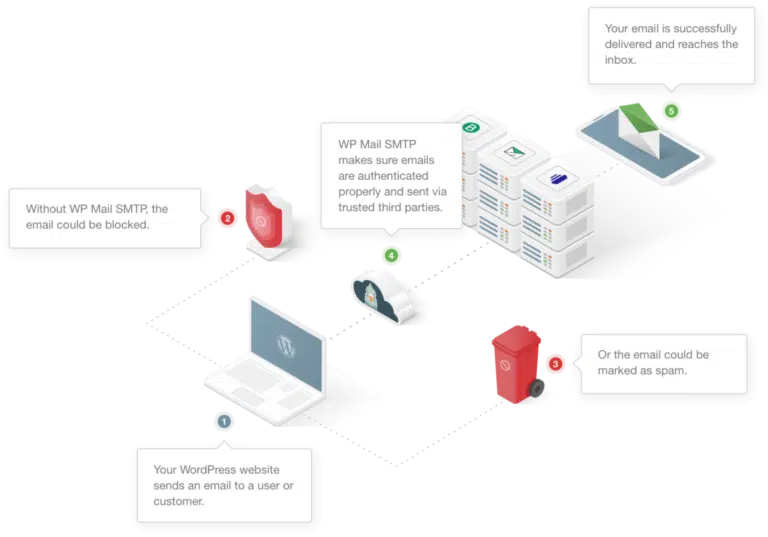
And if you’re here because you were searching for the answer to “Where does WPForms send emails?” then I’ve got you covered. There can be a lot of reasons behind the lack of email notifications:
- Your WordPress hosting server (even unmanaged or managed WordPress hosting) is not configured to use the PHP mail function that WordPress uses to send emails that are generated by a contact form plugin like WPForms.
- Your email server is blocking it as spam. To reduce spam emails, your email provider often checks whether your email is originating from the location it claims to be originating from.
- For example, if your email server is yahoo.com, chances are your form notifications won’t even make it into the spam folder since they’re sent out from a completely different server.
- This can cause tons of issues including WooCommerce emails being lost, Gravity Forms not sending email, or Ninja Forms not sending email.
- The recipient’s email provider may be blocking your domain. If WPForms isn’t sending form notifications to Gmail, this is the likely reason.
In this post, I’ll be using the free WP Mail SMTP plugin to send form notifications using a simple setup with any email account.
How to Fix The WordPress Contact Form Not Sending Email Issue
Fixing the WordPress contact form not sending email issue is super easy with WP Mail SMTP. Follow the steps below to get started! But first, let’s run through a few quick checks.
Step 1: Install the WP Mail SMTP Plugin
WP Mail SMTP is the best option for sending emails since it uses proper authentication methods to ensure email deliverability.
The first thing you need to do is install and activate the WP Mail SMTP plugin. Check out this guide on how to install a WordPress plugin for step-by-step instructions.
Step 1: Install the WP Mail SMTP Plugin
WP Mail SMTP is the best option for sending emails since it uses proper authentication methods to ensure email deliverability.
The first thing you need to do is install and activate the WP Mail SMTP plugin. Check out this guide on how to install a WordPress plugin for step-by-step instructions.
Step 2: Configure Your From Email
After installing and activating this plugin, go to WP Mail SMTP » Settings to configure the mail options. Here, you’ll first be asked to enter your From Email.
This is the email address that all of your site’s emails (including instant form notifications) will be sent from. If you’re setting this up on your business website, you should use an email address that matches your domain (like [email protected]).
Using a free email like Gmail or Yahoo here is a common cause of delivery problems, since the emails are being sent from your server, not theirs. If you don’t have a domain email yet, here’s how to set up a free business email address.
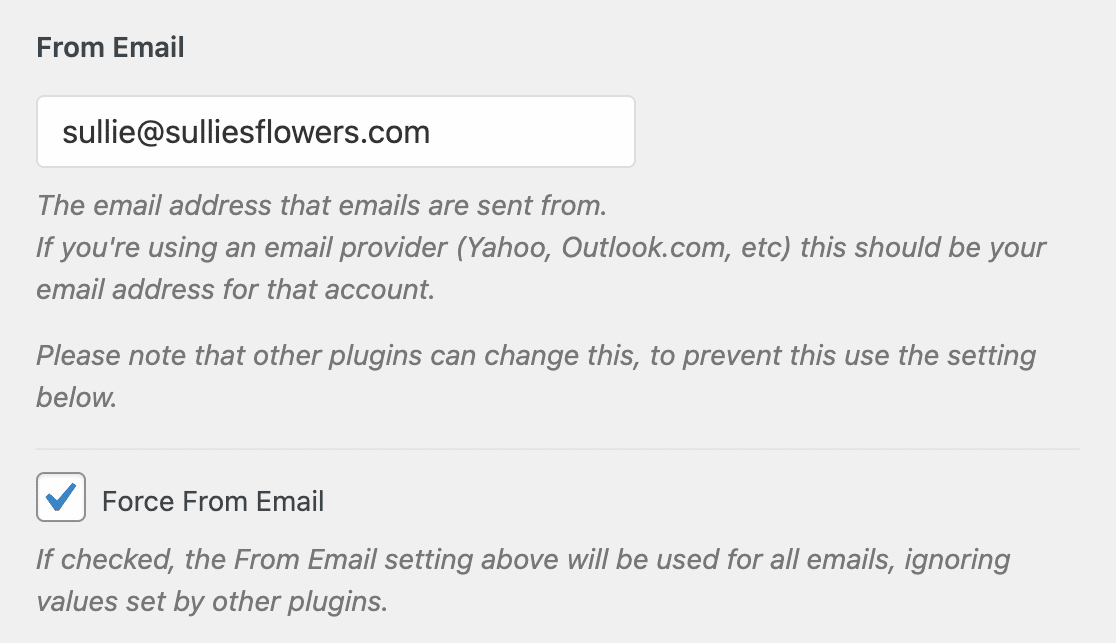
Note: Make sure to enter the same email address you will be using to send SMTP emails.
Step 3: Configure Your From Name
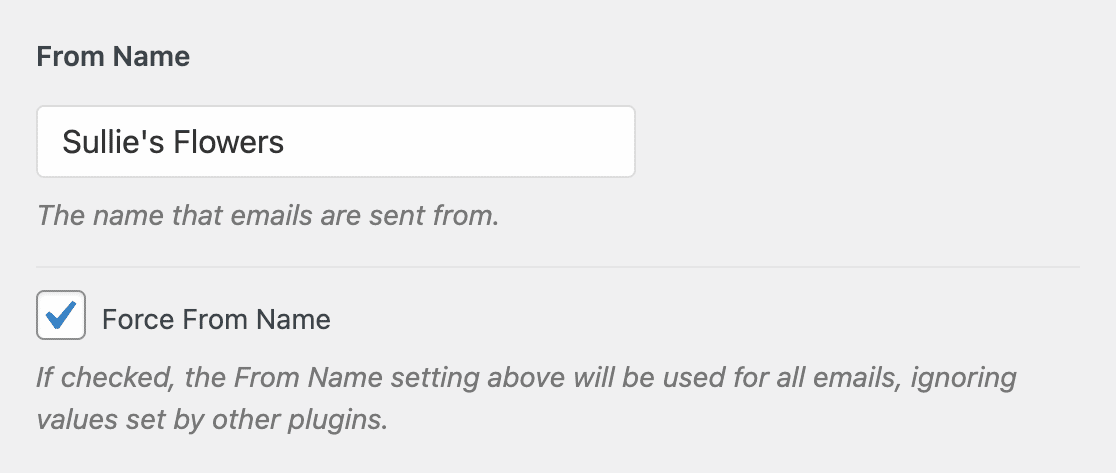
Next, change your From Name. By default, this will be set to the site name. However, you can change this to anything you’d like, like your actual name.
You can also choose to Force From Name to apply this setting to emails site-wide, similar to how we used the Force from Email option earlier.
I also recommend checking the optional Return Path checkbox to Set the return-path to match the From Email.
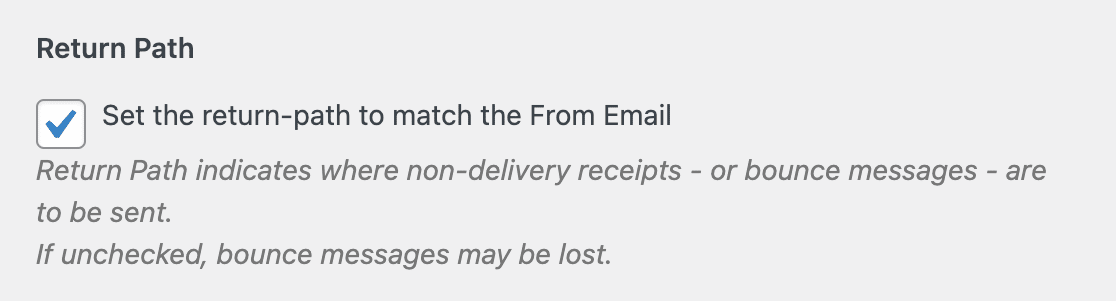
With this enabled, you’ll be emailed at that address if any messages bounce as a result of issues with the recipient’s email.
Step 4: Choose Your Mailer
Now it’s time to set up your mailer. This is the service that actually handles sending your emails. WP Mail SMTP comes with dedicated mailers for the most popular email providers.
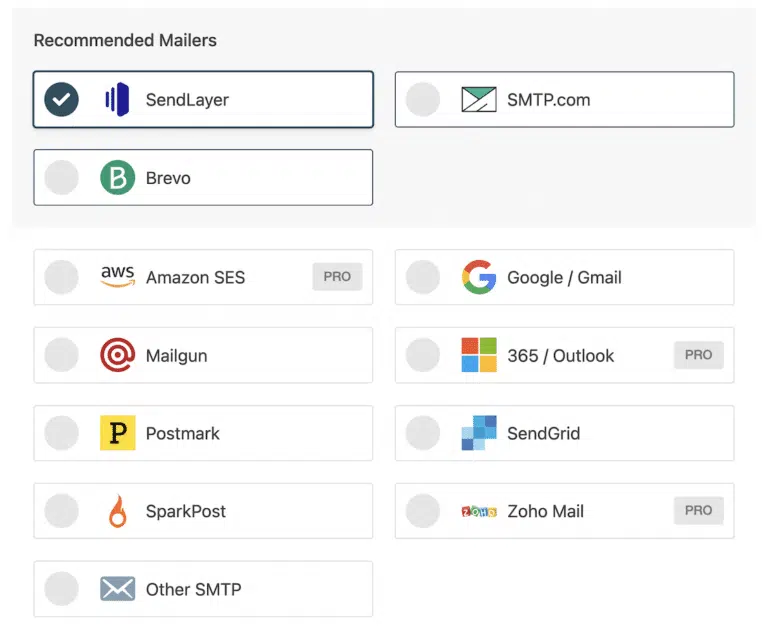
Each one uses API-based authentication, which is more secure and reliable than entering SMTP credentials manually. Here are the options I’d recommend:
- Gmail / Google Workspace. Use the built-in Gmail mailer. It supports a 1-click setup that connects your Google account in seconds.
- Outlook / Microsoft 365. The Outlook mailer also supports 1-click setup. Connect your Microsoft account and you’re done.
- SendLayer. A dedicated email delivery service built for reliability. Great if you send a high volume of emails.
- Brevo. A solid transactional email service with a generous free tier.
- SMTP.com, Mailgun, Amazon SES. Additional options for higher-volume senders.
For a full comparison, check out our guide on the best SMTP servers to find the right fit. Each mailer has its own setup guide in the WP Mail SMTP documentation. Select the one that matches your email provider, follow the walkthrough, and you’ll be connected in a few minutes.
Step 5: Send a Test Email
Once your mailer is set up, it’s important to send a test email to make sure everything is working. WP Mail SMTP makes this super easy. To send a test email, click on the Email Test tab on the Settings page.
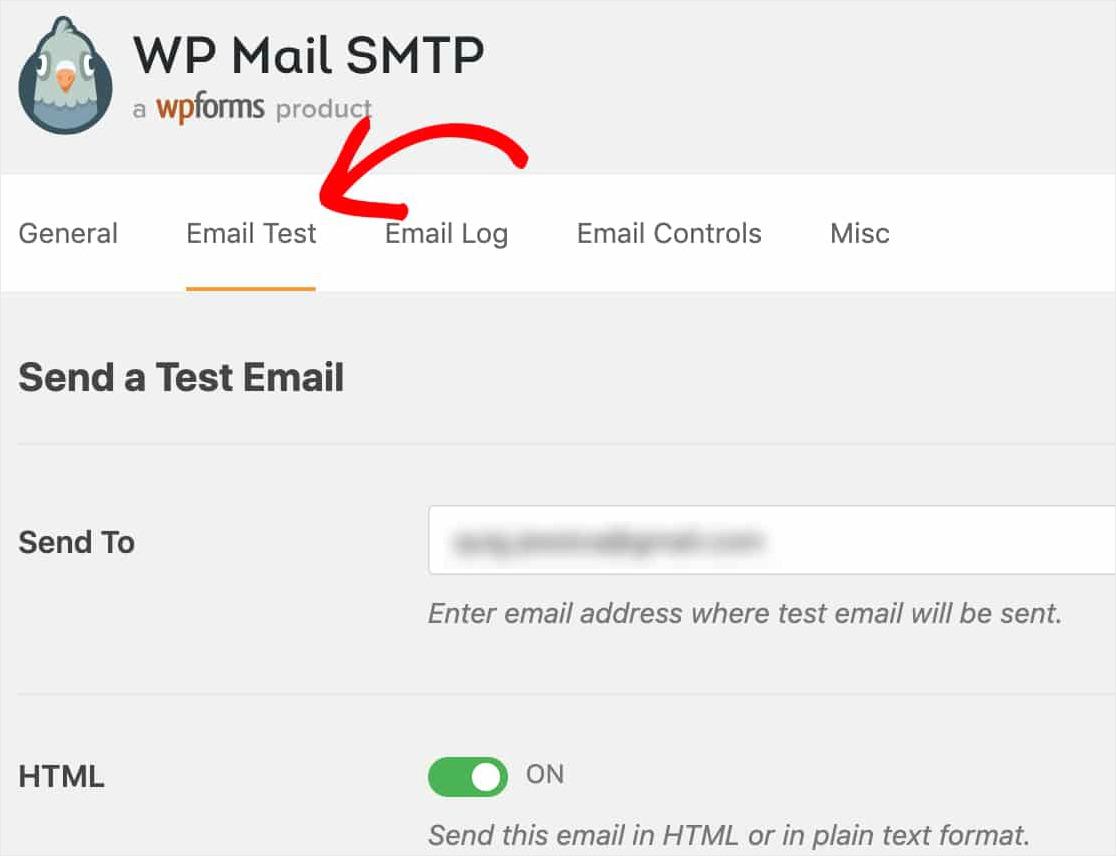
On this tab, you can enter any email address that you have access to and click the Send Email button.
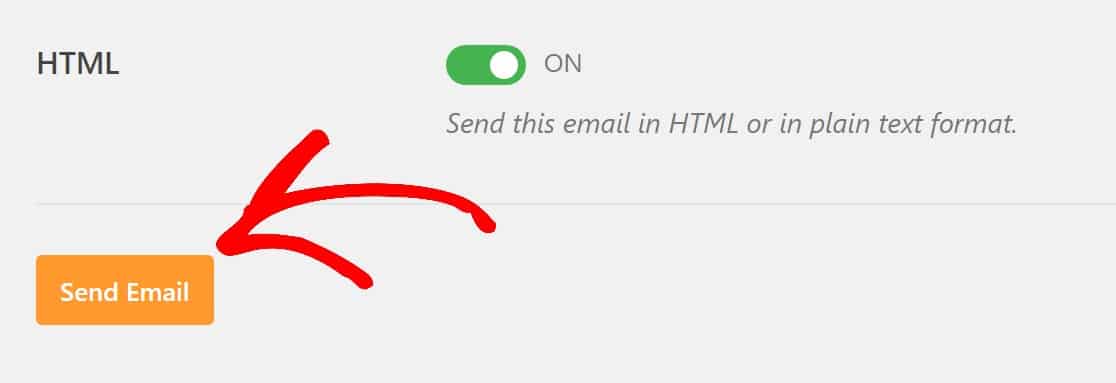
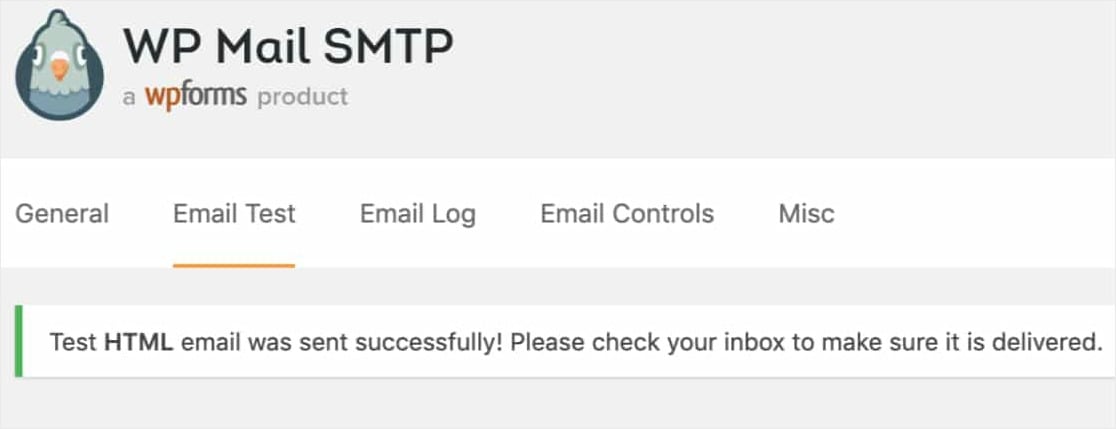
After sending the email, you should see a message telling you that the test HTML email was sent successfully.
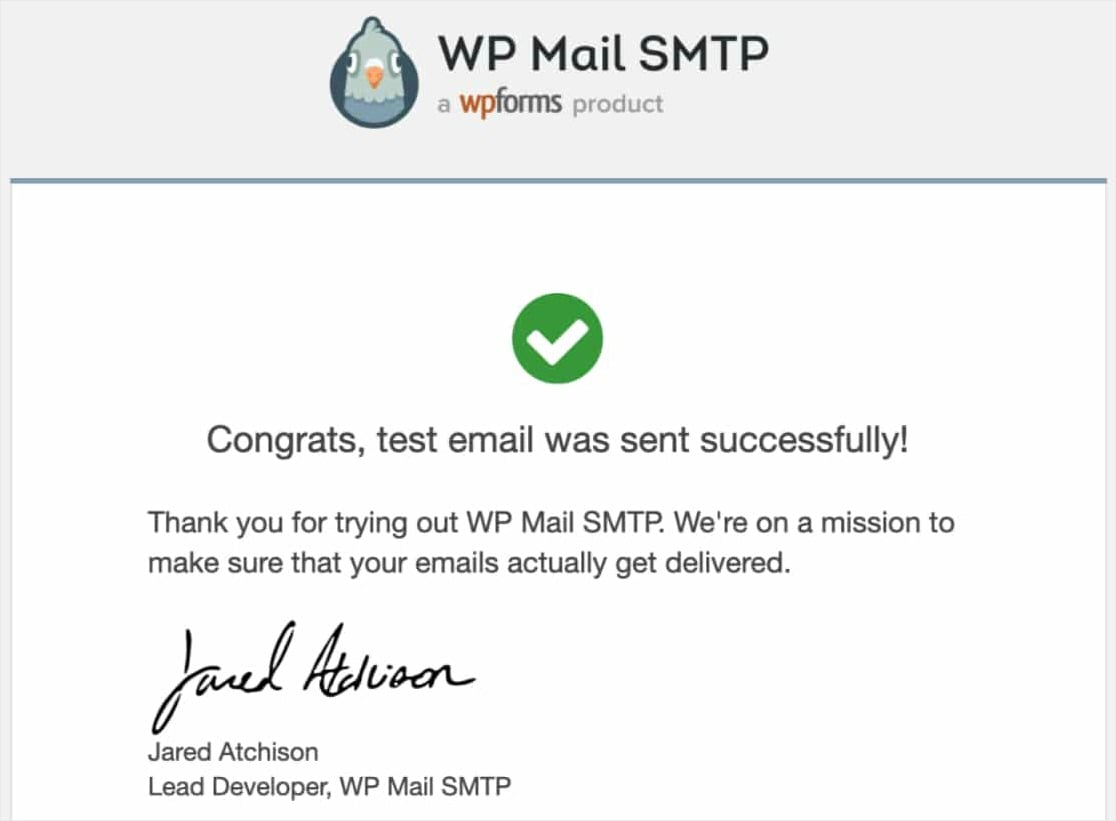
If you check the inbox for the email address you just entered, you should receive the email for this test.
Be sure to also test out your form emails by submitting a couple of test entries after completing this setup. That way, you can confirm that form notifications are delivering successfully.
And don’t forget to set the From Email in your form’s notification settings to the same email you set up this SMTP with.
That’s it! You’ve successfully configured SMTP on your WordPress site. You should now start getting notifications from your WordPress forms.
Important: Set Up Email Authentication
You’ll probably come across this when setting up an SMTP service, but make sure to always set up email authentication for your domain.
This tells email providers that messages from your domain are actually authorized, which significantly reduces the chance of emails landing in spam.
There are three records to add to your domain’s DNS settings. Most SMTP services provide the exact DNS records you need:
- SPF (Sender Policy Framework): Specifies which mail servers are allowed to send email on behalf of your domain.
- DKIM (DomainKeys Identified Mail): Adds a digital signature to your emails so recipients can verify they haven’t been tampered with.
- DMARC (Domain-based Message Authentication): Tells email providers what to do when SPF or DKIM checks fail (reject, quarantine, or allow).
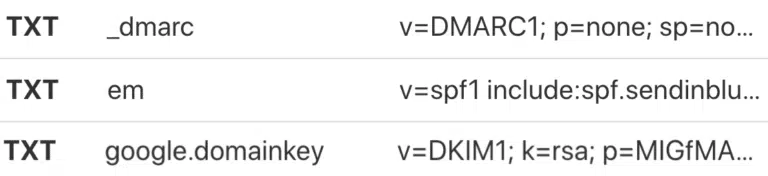
When you set up your mailer in WP Mail SMTP, check the provider’s documentation for the specific SPF and DKIM values to add. Your hosting company or domain registrar can help you add these if you’re not sure how.
Bonus Tip: Enable Email Logging
Once everything is working, consider turning on email logging in WP Mail SMTP. This gives you a record of every email your site sends, including whether it was delivered successfully or failed.
Go to WP Mail SMTP » Settings » Email Log and enable logging. From there, you can track delivery status, see open rates, and quickly troubleshoot if an email goes missing down the road.

FAQs About WordPress Contact Form Not Sending Email
WordPress form emails going missing is a frustrating problem, but it’s almost always fixable. Here are answers to the questions that come up the most.
Why is my WordPress form not sending emails?
The most common reason is that your hosting server isn’t properly configured to send emails using PHP’s built-in mail function. WordPress relies on this by default, and many hosts restrict or disable it.
The fix is to use WP Mail SMTP to route your emails through a dedicated SMTP service. This gives WordPress an authenticated path to deliver emails reliably.
Why are my WordPress emails going to spam?
This usually happens when your domain doesn’t have email authentication records (SPF, DKIM, DMARC) set up. Without these, email providers can’t verify that messages from your domain are legitimate.
Setting up SMTP with a dedicated mailer and adding authentication records to your DNS fixes this in most cases.
Why am I not receiving emails from my website contact form?
If emails aren’t arriving, they might be getting lost between your site and your inbox. Start by checking your spam folder. If they’re not there either, set up WP Mail SMTP and send a test email.
If the test email works but form emails don’t, check your notification settings in your form builder to make sure the “Send To” address is correct. For WPForms specifically, see the email notification troubleshooting guide for step-by-step help.
How do I test if WordPress can send emails?
Install WP Mail SMTP and use its built-in Email Test feature. Go to WP Mail SMTP » Settings » Email Test, enter an email address you can check, and click Send Email. If it arrives, your SMTP setup is working. If not, review your mailer configuration and credentials.
Next, Start Getting More From Your Forms
Now that your email notifications are working, you can focus on getting more out of your forms. Check out our guide on how to send confirmation emails to users after form submission so your visitors know their message was received.
Ready to build your form? Get started today with the easiest WordPress form builder plugin. WPForms Pro includes lots of free templates and offers a 14-day money-back guarantee.
If this article helped you out, please follow us on Facebook and Twitter for more free WordPress tutorials and guides.





I have tried everything you suggested – set-up my SMTP correctly – sent the test email which worked. But I am still not receiving emails sent from my contact form which I set up using WPform Lite. The form looks great and when you send a message you get the confirmation message that the email has been sent. I’ve got an automated email message from WPforms to let me know how my form is performing. I’ve followed all the instructions on how to set-up a form and made sure the form notification in setting is correctly filled out. I’ve Elemenator to edit my website. I’ve checked with my web hosting company LCN and they said the problem is not at their end. I am lost and don’t know what the problem could be. I’m sure this is not uncommon. Please HELP!
Hi Paul – I’m sorry to hear you’re running into so many issues with this (and sorry, too, for my late reply)! If the test email is working, then the good news is that your mailer is working just fine. In most cases like this, the last step is to go to WP Mail SMTP > Settings and check the “Force From Email” box.
And if you’ve already done that, then my next recommendation would be to try a different mailer. I know that this is a frustrating solution, but it may be that something about the specific mailer just doesn’t work as well with your specific site.
Last, please know that we’re happy to help with WP Mail SMTP questions over in our WordPress.org forum. Just please be sure to copy/paste your detailed message into the forum post, since that’s all useful to know.
I hope this helps!
SMTP Host: smtp.mail.yahoo.com
Encryption: SSL
SMTP Port: 465
Auto TLS: ON
Authentication: ON
SMTP Username: [details removed]@yahoo.com
SMTP Password: •••••••••••••••• (WP Mail SMTP app password)
It also doesn’t work with my regular Yahoo mail password.
It gives the error:
There was a problem while sending the test email.
Could not connect to the SMTP host.
This means your web server was unable to connect to smtp.mail.yahoo.com.
Typically this error is returned for one of the following reasons:
-SMTP settings are incorrect (wrong port, security setting, incorrect host).
-Your web server is blocking the connection.
-Your SMTP host is rejecting the connection.
I’ve also tried changing to TLS port 587 it gives the error:
There was a problem while sending the test email.
Error due to unsolicited and/or bulk e-mail.
This means the connection to your SMTP host was made successfully, but the host rejected the email.
Typically this error is returned when you are sending too many e-mails or e-mails that have been identified as spam.
If I turn encryption off it just sits there “waiting…”
It seems every time I try to set up email with WordPress, no matter what plugin I’m using, it is a serious PITA.
Hi George!
I apologize for any confusion!
If you have a WP Mail SMTP or WPforms license, you have access to our email support, so please submit a support ticket.
Otherwise, we provide limited complimentary support in the WPForms Lite WordPress.org support forum.
Have a good one 🙂
could u solve the problem?? I have the exact same problem here.
Hi George,
We’ll be happy to help 🙂
If you have a paid license of WP Mail SMTP, you can reach out to them here or if you are a free user, you can reach out to them here.
Have a good one 🙂
Hi I can’t send mails and gives this error code. Please help. Thanks a lot
Versions:
WordPress: 5.4.1
WordPress MS: No
PHP: 7.3.6
WP Mail SMTP: 2.0.1
Params:
Mailer: smtp
Constants: No
ErrorInfo: SMTP Error: Could not authenticate.
Host: smtp.gmail.com
Port: 587
SMTPSecure: tls
SMTPAutoTLS: bool(true)
SMTPAuth: bool(true)
Server:
OpenSSL: OpenSSL 1.0.1e 11 Feb 2013
Apache.mod_security: No
SMTP Debug:
2020-05-15 10:00:23 Connection: opening to smtp.gmail.com:587, timeout=300, options=array ()
2020-05-15 10:00:23 Connection: opened
2020-05-15 10:00:23 SERVER -> CLIENT: 220 smtp.gmail.com ESMTP 94sm3049930wrf.74 – gsmtp
2020-05-15 10:00:23 CLIENT -> SERVER: EHLO myonlinestore.byethost13.com
2020-05-15 10:00:23 SERVER -> CLIENT: 250-smtp.gmail.com at your service, [185.27.134.50]250-SIZE 35882577250-8BITMIME250-STARTTLS250-ENHANCEDSTATUSCODES250-PIPELINING250-CHUNKING250 SMTPUTF8
2020-05-15 10:00:23 CLIENT -> SERVER: STARTTLS
2020-05-15 10:00:23 SERVER -> CLIENT: 220 2.0.0 Ready to start TLS
2020-05-15 10:00:23 CLIENT -> SERVER: EHLO myonlinestore.byethost13.com
2020-05-15 10:00:23 SERVER -> CLIENT: 250-smtp.gmail.com at your service, [185.27.134.50]250-SIZE 35882577250-8BITMIME250-AUTH LOGIN PLAIN XOAUTH2 PLAIN-CLIENTTOKEN OAUTHBEARER XOAUTH250-ENHANCEDSTATUSCODES250-PIPELINING250-CHUNKING250 SMTPUTF8
2020-05-15 10:00:23 CLIENT -> SERVER: AUTH LOGIN
2020-05-15 10:00:23 SERVER -> CLIENT: 334 VXNlcm5hbWU6
2020-05-15 10:00:23 CLIENT -> SERVER: Y2hhbmRyYWppdGhzQGdtYWlsLmNvbQ==
2020-05-15 10:00:23 SERVER -> CLIENT: 334 UGFzc3dvcmQ6
2020-05-15 10:00:23 CLIENT -> SERVER: cGh5bHVtY2hhZDE5ODY=
2020-05-15 10:00:24 SERVER -> CLIENT: 534-5.7.14 534-5.7.14 Please log in via your web browser and then try again.534-5.7.14 Learn more at534 5.7.14 https://support.google.com/mail/answer/78754 94sm3049930wrf.74 – gsmtp
2020-05-15 10:00:24 SMTP ERROR: Password command failed: 534-5.7.14 534-5.7.14 Please log in via your web browser and then try again.534-5.7.14 Learn more at534 5.7.14 https://support.google.com/mail/answer/78754 94sm3049930wrf.74 – gsmtp
SMTP Error: Could not authenticate.
2020-05-15 10:00:24 CLIENT -> SERVER: QUIT
2020-05-15 10:00:24 SERVER -> CLIENT: 221 2.0.0 closing connection 94sm3049930wrf.74 – gsmtp
2020-05-15 10:00:24 Connection: closed
SMTP Error: Could not authenticate.
Hey there! Looking at the error message, it looks like your SMTP Username and/or SMTP Password may not have been entered correctly. Please double-check them and if it does not help, I would suggest contacting the WP Mail SMTP support team.
If you have a paid license of WP Mail SMTP, you can reach out to them here or if you are a free user, you can reach out to them here. Have a good one 🙂
I am having the same problem as Paul. Everything works correctly in the email test, the form looks great, and I get the “thanks for contacting us” message that the form went through when I test it. However, the form is not reaching my email account. I have tried this from other users as well as my own and it’s the same problem. Please help! This is so frustrating!
Hi Julia.
If you have a WP Mail SMTP or WPforms license, you have access to our email support, so please submit a support ticket.
Otherwise, we provide limited complimentary support in the WPForms Lite WordPress.org support forum.
I hope this helps.
Have a good one 🙂
Hi Julia,
I was having this issue also. I believe I solved it by going to the WP Contact form settings-General and untick the ‘Enable anti-spam honeypot’. It could only be due to the content in the form I was entering when testing but seemed to solve it for me.
Thank you for your help, SAM. You are absolutely right. I had the same issue with Julia and you, and I fixed it by following your suggestions!
Hey Shirley – Thanks for your message. If disabling the Anti Spam field fixed the issue for you, I assume your form might not have been submitting at all? Usually, that will happen when either some JS error via some plugin/theme or sometimes a few caching plugins are not allowing our Anti-Spam feature to work on your site. Keeping the Anti Spam feature enabled on your site helps to prevent spams on your site.
Our team can help to find the exact issue on your site if you want us to troubleshoot this for you. If you have a WPForms license, you have access to our email support, so please submit a support ticket.
Thanks 🙂
I am not able to get a successful test message. When I send the test it just spins and spins, the page eventually went blank and in the top tab header (favicon) it says “nothing found.” Then eventually it went to an error 404 page? I have no idea how to fix this. I’m not getting an error page, just freezing.
Hi There- I am sorry to hear that you are facing this odd issue but we’d be happy to help! When you get a chance, please drop us a line in support so we can assist.
If you have a WP Mail SMTP license, you have access to our email support, so please submit a support ticket. That way we can discuss more details and investigate this further.
Thanks 🙂
I only have the free version because I’m afraid to pay for anything at this point if it doesn’t work.
Hi Sunshine,
Please feel welcome to ask your question in the WP Mail SMTP WordPress.org support forum where we provide limited complimentary support!
I’d recommend you to take a full experience of our product, without limits. This is why we proudly offer a 14-day guarantee. All purchases are fully protected by our 100% No-Risk Double-Guarantee. This means if you give it a try, and over the first 14 days decide WP Mail SMTP isn’t a good fit, then we’ll happily refund 100% of your money. No questions asked. Please see WP Mail SMTP’s Pricing Page
Thanks 🙂
am using email redirect.its work well and receiving on forwarder mail.but in case of contact form only first contact form submission is receiving on forwarder mail.rest submission not receiving on forwarder mail(no problem with ordinary emails.)
Hey There – I am sorry to hear that you are facing the email delivery issue!
Could you please troubleshoot this by referring to this troubleshooting guide? If the issue still persists, the issue is likely because the emails sent from WordPress are not authenticated (unlike emails sent from dedicated email service providers). As a result, they are likely to be filtered by the receiving mail server.
To resolve email delivery issues like this, you can configure a SMTP plugin on your site so that emails are sent as authenticated.
If you have a WP Mail SMTP license, you have access to our email support, so please submit a support ticket. That way we can discuss more details and investigate this further.
Thanks 🙂
Hi! I installed the extra plugin to make my form emails work but now they’re going to junk. How do I fix this?
Hi Erin — Sorry to hear that! Could you please troubleshoot the SMTP settings as shown in this guide?
If you have a WP Mail SMTP license, you have access to our email support, so please submit a support ticket. That way we can discuss more details and investigate this further. Else, please feel welcome to ask your question in the WP Mail SMTP WordPress.org support forum where we provide limited complimentary support!
Thanks 🙂
Hey! I also receive the test e-mail but i can’t receive the e-mail from my website. I guess i’ll try another e-mail plugin (i use wp mail smtpm)… what do you recommend, please?
Hi Flavia- I am sorry about the issue you are facing here!
If you have a WP Mail SMTP or WPforms license, you have access to our email support, so please submit a support ticket. Otherwise, we provide limited complimentary support in the WPForms Lite WordPress.org support forum.
Have a good one 🙂
I used your plugin and designed some really complex forms just to find that I cannot fix the sending issues and used all the fixes described in so many of the comments above.
Will have to find another plugin. It’s not fine to say buy the pro for support. the free is not delivering!!!
Hi Leslie. I’m sorry to hear that you’re having some issues with your Notification Emails not sending, and I apologize for any misunderstanding. We do still provide support for users of our Lite (free) version. To request support for the Lite version, please reach out here at our support forums.
Hello,
I followed these steps. Yet it doesn’t work.
I can normally send emails and receive.
However WPForm submissions show no notification.
What could be the issue please.
Thanks
Hi There- I am sorry to hear about the email delivery issues you are facing here! However, to further troubleshoot, please navigate to WP Mail SMTP > Settings > Click on the “Email Test” tab and run a test. Based on that you’ll be able to retrieve the error logs. Please refer to this guide
If you have a WP Mail SMTP license, you have access to our email support, so please submit a support ticket. Otherwise, we provide limited complimentary support in the WPForms Lite WordPress.org support forum. Here you can share additional details of the issue and we’d be happy to help 🙂
Thanks!
http://artamer.com/contact , i have used the -plugin and set other smtp. the test mail is also working fine, but contact form submission is not sending mail.
please help me with this, thank you
Hi Reshmi! To troubleshoot the issue, you can check that your form notification settings are correct using our tutorial.
You also mentioned that you’re using the Other SMTP mailer option, with the SMTP configuration provided by your hosting provider. Please note that such a configuration provides no benefits to your site’s email deliverability, and you’ll need to configure one of the SMTP services with the plugin.
We have an article with a list of recommended SMTP options and links to their setup tutorials here.
Please sign up for an SMTP service and connect it to your SMTP plugin so that your site’s emails can be sent as authenticated.
I hope this helps to clarify 🙂 If you have any further questions about this, please contact us if you have an active subscription. If you do not, don’t hesitate to drop us some questions in our support forums.
I have no issues recieving the test email, but when I try to submit something using the form, I don’t recieve any emails
Hi Anas,
Sorry to hear that! When you get a chance, while doing an Email Test, could you please check for the error logs and share it with us?
If you have a paid license of WP Mail SMTP, you can reach out to them here or if you are a free user, you can reach out to them here.
Thanks!
I did an email test and I recieved the email successfully, no errorrs appeared even when I enabled debugging. However when I actually submit an email from the form I don’t recieve any emails.
Its worth mentioning that I completed setting up the DKIM record and I am just waiting for the SPF and the DMARC.
Also I tried reaching out for support from the link above but it said that support is available for the paid version
Hi Anas – Sorry about the odd issue you are facing here!
Please know that support for WP Mail SMTP is available to users with an active WP Mail SMTP license. If you have further questions or would like to receive email support for email delivery issues, we recommend purchasing a WP Mail SMTP license.
In case it helps to know, we’re currently offering $50 off any new WP Mail SMTP license. All you’d need to do is go to https://wpmailsmtp.com/lite-upgrade/, then click on the ‘Upgrade Now’ button to get that $50 discount.
Thank you for understanding.
Observation: When I submit a form with all necessary email configuration, It does not save it.
All settings are gone after refresh a page even it says “Settings were successfully saved.” Looks like your plugin is not working correctly.
I trield multiple “Other SMTP” options. Gmail, smtp.ionos.de, and GMAIL option as well
Full email test log:
Versions:
WordPress: 5.7.2
WordPress MS: No
PHP: 7.4.3
WP Mail SMTP: 3.2.1
Params:
Mailer: mail
Constants: No
Server:
PHP.mail(): Yes
Apache.mod_security: No
PHPMailer Debug:
Could not instantiate mail function.
Debug:
Email Source: WP Mail SMTP
Mailer: Default (none)
PHPMailer was able to connect to SMTP server but failed while trying to send an email.
Hi Bipin! Usually if you’re unable to save changes, it means that there is a server permission issue, or a cache issue. It will take some investigating to find out exactly what is the cause.
Could you please reach out to the WP Mail SMTP team for help with this and submit a support ticket if you have a WP Mail SMTP license.
Otherwise, we provide limited complimentary support in the WP Mail SMTP WordPress.org support forum.
Thanks!
I am still getting emails to my old email.
When I set up WP MAIL SMTP my WordPress admin email was [email protected]. So I got WP Form notifications at this email. Then I changed my admin email to [email protected] and set up mailer as per instructions. But whenever I submit form at my website, The mail is sent to my old email address.. I have tries removing and reinstalling plugin, clearing website catche but issue not resolved.
Hey Muhammed. I apologize for any inconvenience! In order to make sure we answer your question as thoroughly as possible, we would like to take a closer look at your settings.
If you have a WPForms license, you have access to our email support, so please submit a support ticket. Otherwise, we provide limited complimentary support in the WPForms Lite WordPress.org support forum.
Thanks.
This is not a beginner-friendly guide. Once I saw how complicated it was, with all the technical terms, I hastily removed the plugin. I manage the website of a small private school in Palo Alto, California. The school uses Google for Education to handle its email services. My question is, if I upgrade our WPForms account to Pro, what additional help can you offer to set up WP Mail SMTP for our site? For starters, I assume I will need to access our Google for Education backend – is that true? (I’ve been managing the website but not the email system which is done “locally” at the school office. Thank you.
Hey George, I am sorry to hear that you are facing this odd issue but we’d be happy to help!
Since your school users Google Education, I believe setting up a Google / Gmail mailer would be great for you.
In case it helps, you may want to check our step-by-step guide here as well this video tutorial on the same that can help you.
The WPBeginner also has a great guide with more details on the issue as well as other great alternatives, in case you’d like more details.
I hope this helps.
Installed wpform and wpsmtp, under the SMTP tools, the Sen a test Email works, however if we try this from the form, nothing happens, doenst even reach out to the email server. Thoughts ?
Hi Sean – We’d be happy to help! When you get a chance, please drop us a line in support so we can assist.
If you have a WPForms license, you have access to our email support, so please submit a support ticket.
Otherwise, we provide limited complimentary support in the WPForms Lite WordPress.org support forum.
Thanks 🙂